Introduction#
One-to-one messaging or group messaging is the same in snackabra, everything centers around a “room”. You access a room with it’s unique URL, that will look something like this:
https://example.com/hkUkHY6wm-ZXmIyhCt1v4NBK-o1PV4GyKBnl7U8KaYgoe1Yi150ptDnVUmkboFOL
First time you visit any room you will see a welcome message to assign yourself an alias:
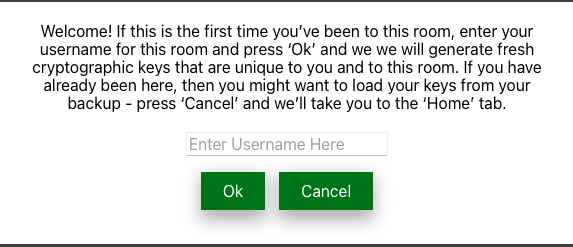
Typical first-time-visitor message.#
Type something in the box, and you’re in the chat room:
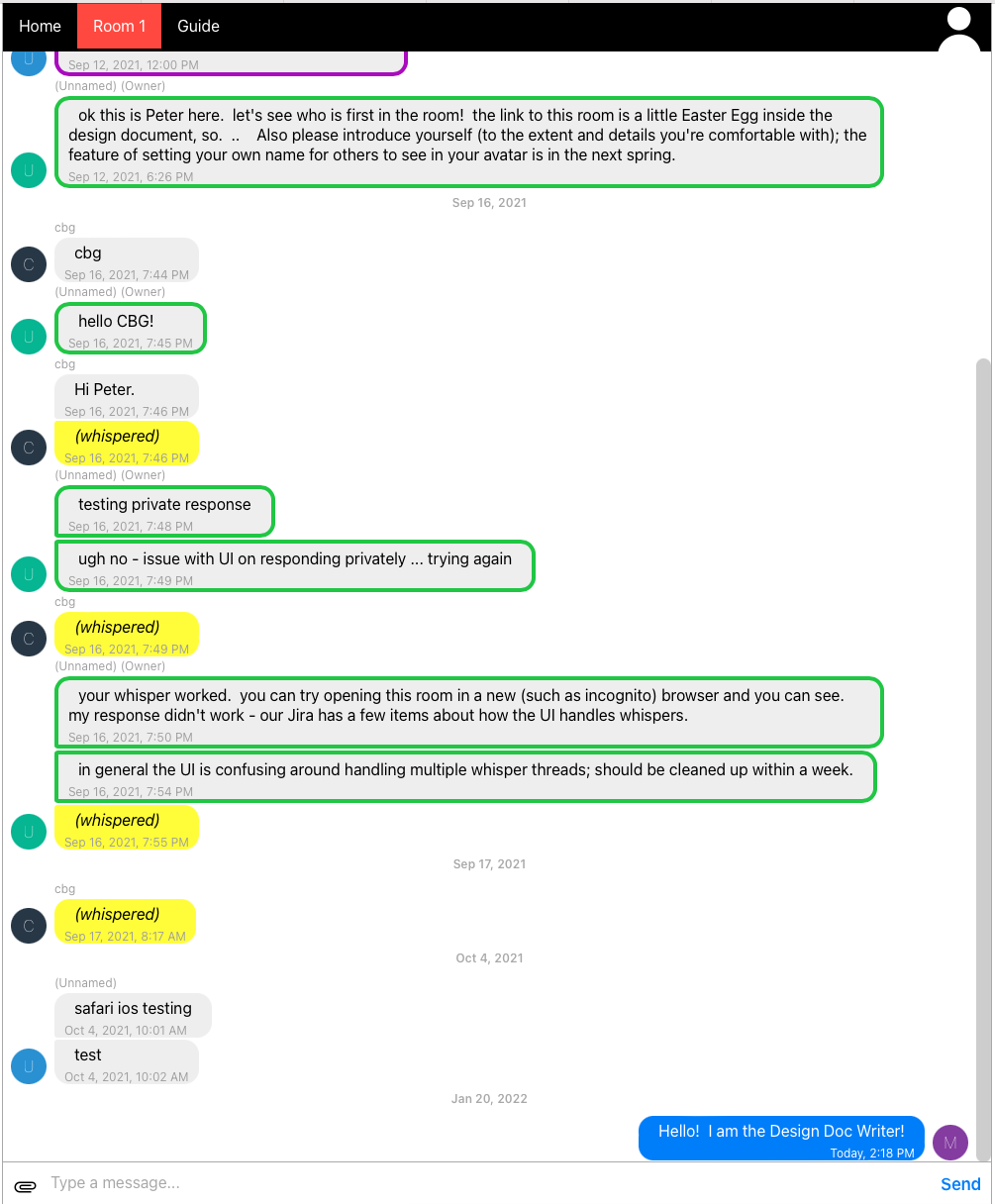
Sample view of a room.#
The above is from our current web interface, a native iOS app is under development, but the “web app” interface is designed to work (decently) on mobile browsers. [2]
Message Types#
In the above screenshot of a sample room, all the main message types are demonstrated:
Purple border (glimpsed at the top) indicates a Verified guest. “Verified” guest means that this was the first visitor to enter the room, other than the owner/Admin. If you’ve been invited by an Owner to join their room for a one-to-one communication, then you will be labelled as Verified.
Green border means Owner or Admin. All rooms have an Owner. An Owner can be present in the room in different ways, incognitor as a Guest, or as an Owner. “Admin” simply means the Owner has logged in with full authentication, which is required for certain Owner actions.
No border means regular Guest.
Yellow filled bubbles are “Whispers”.
Your messages are shown on the right, and everybody else’s on the left.
Right away on entering a room you might note some important things:
You’re not required to register, log in, pick a password.
Room Keys#
A lot happened in your browser in the above simple steps. The snackabra web client loaded, and checked for any state in your “local storage” (in your browser). If there’s none, it initializes that data for you. You can see the results by selecting the “Home” tab:
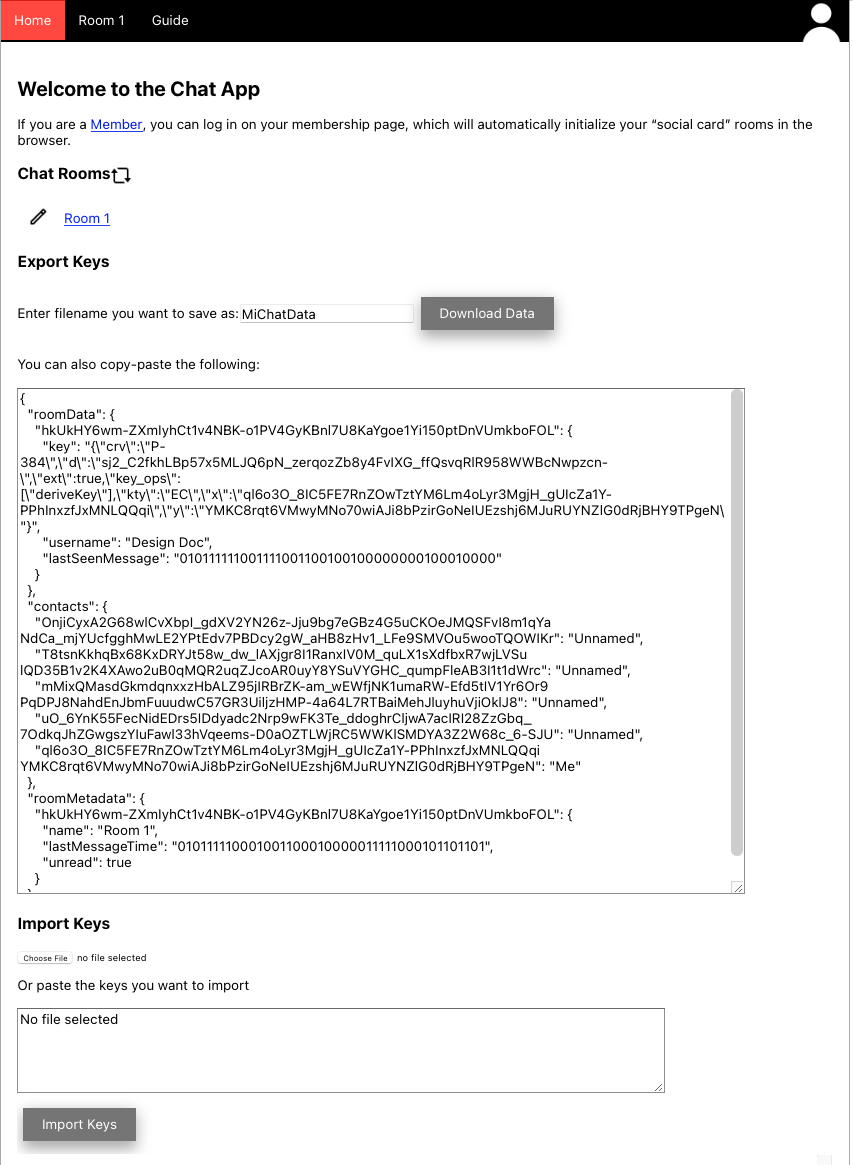
Sample view of a basic home page.#
If this is your first time using any snackabra chat rooms, you should see something very similar to the above. It shows a link to the one room that you’ve visited so far (“Room 1”), and amongst other things, gives you an option to export or import your “keys”. We’ve expanded the text box a bit so you can see the full set of “keys”. Let’s talk about those a bit.
When you first try to enter the room, you are just a “Visitor”, and behind the scenes the snackabra web app will initialize local data with basics about the room you’re trying to connect to:
{
  "roomData": {},
  "contacts": {},
  "roomMetadata": {
    "hkUkHY6wm-ZXmIyhCt1v4NBK-o1PV4GyKBnl7U8KaYgoe1Yi150ptDnVUmkboFOL": {
      "name": "Room 1"
    }
  }
}
This is all that snackabra knows about you so far - that you’re trying
to access a room with identy hkUkHY6wm.... You haven’t “entered”
the room yet - the room requires your alias string before admitting
you.
At this point you’re a “visitor” and at first the system doesn’t know anything about you. Visitors are either Guests or Owners. Guests can be Verified (or not), and Accepted (or not), and Owners can also be Admin. More on all this shortly:
Basic categories of visitors#
A typical first-time visitor is a straight-up Guest (neither Verified nor Accepted). The app now generates more state, which is what you actually see when you go to the Home tab:[1]
{
  "roomData": {
    "hkUkHY6wm-ZXmIyhCt1v4NBK-o1PV4GyKBnl7U8KaYgoe1Yi150ptDnVUmkboFOL": {
      "key": {"crv":"P-384",
              "d":"sj2_C2fkHLBp57X5MLJq6pN_ZErq0zZb8y4FvIXG_ffQsvqRlR958MMBcNwpzcn-",
              "ext":true,
              "key_ops":["deriveKey"],
              "kty":"EC",
              "x":"ql6o3O_8IC5fE7RnZOwTZtYm6Lm4oLyr3MgjH_gUIcZa1Y-PPhInxzfJxMNLQQqi",
              "y":"YMKC8rqt6VmwyMNo70wiAJi8bPzIrGoNeIUEzShj6MJuRUYnZlG0dRjBHY9TPgeN"
             },
      "username": "Design Doc",
      "lastSeenMessage": "010111111001111001100100100000000100010000"
    }
  },
  "contacts": {
    "OnjiCyxa5G68wlCvXbpI_gdXV2YN26z-Jju9bg7eGBz4G5uCKOeJMQSFvI8m1qYa NdCa_mJYUcfgghMwLE2YPtEdv7PBDcy2gW_aHB8zHv1_LFe9SMVOu5wooTQOWIKr": "Unnamed",
    "T8tsnKkhqCx68KxDRYJt58w_dw_lAXjgr8I1RanxIV0M_quLX1sXdfbxR7wjLVSu lQD3521v2K4XAwo2uB0qMQR2uqZJcoAR0uyY8YSuVYGHC_qumpFleAB3I1t1dWrc": "Unnamed",
    "mMixQMasdGKMdqnxxzHbALZ95jIRBrZK-am_wEWfjNK1umaRW-Efd5tIV1Yr6Or9 PqDPj8NahdEnJbmFuuudwC57GR3UiljzHMP-4a64L7RTBaiMehJluyhuVjiOklJ8": "Unnamed",
    "uO_6YnK55FecnIdEDrs5IDdyadc2Nrp9wFK3Te_ddoghrCljwA7acIRI28ZzGbq_ 7OdkqJhZgwgsZYIuFawl33hVqeems-D0aOZTLWjRC5WWKlSMDYA3Z2W68c_6-SJU": "Unnamed",
    "ql6o3O_8IC5fE7RnZOwTZtYm6Lm4oLyr3MgjH_gUIcZa1Y-PPhInxzfJxMNLQQqi YMKC8rqt6VmwyMNo70wiAJi8bPzIrGoNeIUEzShj6MJuRUYnZlG0dRjBHY9TPgeN": "Me"
  },
  "roomMetadata": {
    "hkUkHY6wm-ZXmIyhCt1v4NBK-o1PV4GyKBnl7U8KaYgoe1Yi150ptDnVUmkboFOL": {
      "name": "Room 1",
      "lastMessageTime": "010111110001001100010000011111000101101101",
      "unread": true
    }
  }
}
These are your “keys”. We will explain the components briefly in this
overview, and then in detail elsewhere in the document. These are all
stored in your browser’s localStorage [3]. That’s a small
database handled by your browser, whether you are on a computer or on
a mobile phone.
This is important: you are responsible for not losing these keys. You can hit the “Export” button on your Home tab, and save them as a file - on your phone or your computer, or email them to yourself. If you are using a mobile app, then you won’t necessarily see this data at all and the app will manage it for you on your device. More on this later.
Sequence Diagrams#
First let’s introduce the type of sequence diagrams that we will be using in these docs:
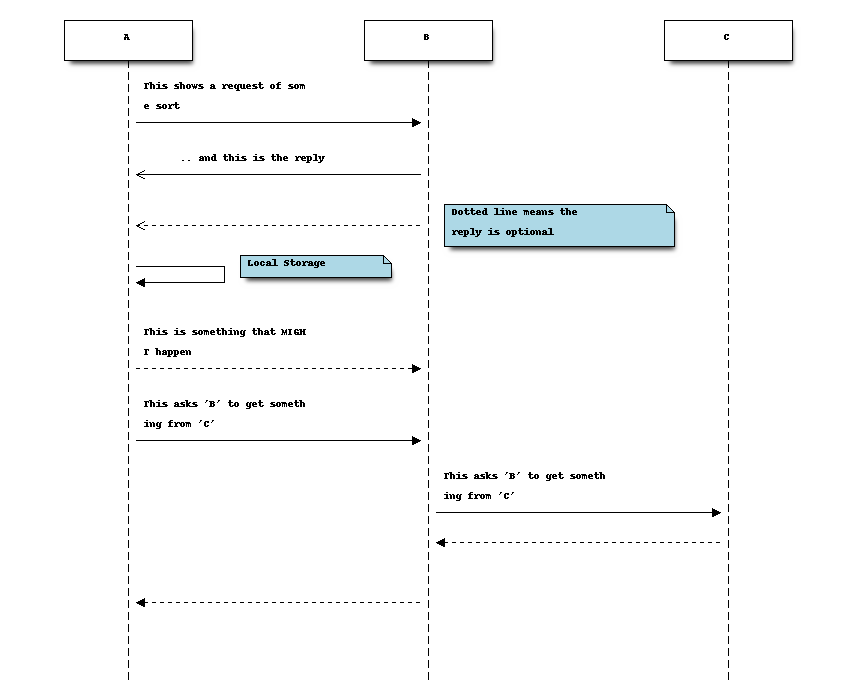
Note that the “solid” arrowhead is something initated, and if there is a regular arrow immediately after then, that is the reply. If the line is dotted, it’s optional - an optional reply, or an event that “might” happen.
Basic Connection#
Here’s roughly what’s going on. Let’s say you’re connecting to “example.com/<room…>” with a browser (on a computer or on a phone, doesn’t matter, you’re using a “web client” / “web app”):
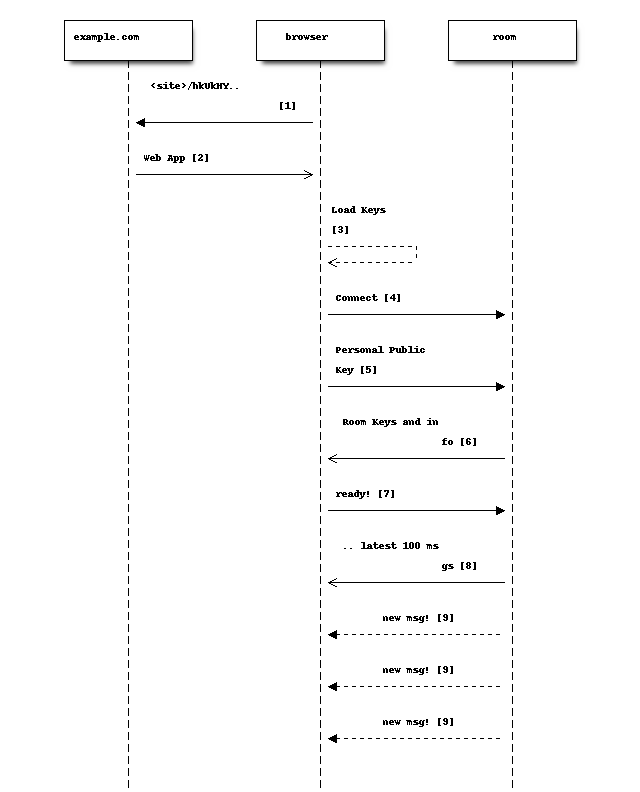
Details on the steps:
Your browser connects to “<site>/<roomId>”, which returns the web application (for example https://github.com/snackabra/snackabra-weblient). The client logic is the downloaded web app. This step is optional - if you are running your web client locally, or using a mobile app (for example https://github.com/snackabra/snackabra-ios), then your interaction goes to the next step. For this example we’ll assume you’re using a browser.
Web client (“app”) fires up.
The app checks for crypto keys in the browsers’ local storage, and will load what’s there. If that includes keys for the room in question, then it’ll use those, otherwise it will generate a new “personal public key” pair (and store it locally). That’s your “real” identity in any room.
The app connects (web socket) to the room server. In this example we will assume you’re connecting to a Personal Room Server to keep it simple.
The first thing the app does is present the user identity (the public key from [3]).
The room server will respond with a number of things: the room keys (public keys for other participants), the MOTD, and whether the room is Restricted or not.
Once the app has digested all the info and is all set to rock and roll, it sends a “ready” message to the room server.
The first thing the room sends upon seeing “ready” is to start catching the client up on messages (latest 100).
As long as the socket is open, the room server will forward anything anybody else adds to the room, in real time.
Now we can connect that back to the state in the previous figure (the “[N]” notation refers to explanations below the figure):
[1] {

      "roomData": {
[2]       "hkUkHY6wm-ZXmIyhCt1v4NBK-o1PV4GyKBn...
          "key": {"crv":"P-384",
[3]               "d":"sj2_C2fkHLBp57X5MLJq6pN...
                  "ext":true,
                  "key_ops":["deriveKey"],
                  "kty":"EC",
[4]               "x":"ql6o3O_8IC5fE7RnZOwTZtY...
                  "y":"YMKC8rqt6VmwyMNo70wiAJi...
                 },
          "username": "Design Doc",
          "lastSeenMessage": "0101111110011110...
        }
      },
[5]   "contacts": {
        "OnjiCyxa5G68wlCvXbpI_gdXV2YN26z-Jju9b...
        "T8tsnKkhqCx68KxDRYJt58w_dw_lAXjgr8I1R...
        "mMixQMasdGKMdqnxxzHbALZ95jIRBrZK-am_w...
        "uO_6YnK55FecnIdEDrs5IDdyadc2Nrp9wFK3T...
[6]     "ql6o3O_8IC5FE7RnZ0wTztYM6Lm4oLyr3MgjH...
      },
      "roomMetadata": {
        "hkUkHY6wm-ZXmIyhCt1v4NBK-o1PV4GyKBnl7...
[7]       "name": "Room 1",
[8]       "lastMessageTime": "0101111100010011...
          "unread": true
        }
      }
    }
All this type of information we tend to call “keys”, even if there’s also some meta data. They’re stored in JSON format in local browser storage (or secure storage on a mobile app).
You recognize the room id by now!
“d” is magical in EC keys, it’s the “private” part of the key. This thus keeps your local (secret) private key that corresponds to this specific room. All participants get all the public keys from all other participants.
The “x,y” pair is your public key (so to speak).
The “contacts” section simply lists the identities of everybody else on the chat. The room server tracks this.
And here “we” are, in the list of participants.
For ease of (human) use, the client tracks some meta data on the room. For example you can assign it a name (only visible to yourself).
This shows the time stamp of the last seen message. We use a time stamp representation that allows for prefix searches, more on this later.
It’s an important design principle of snackabra that the important pieces of information is comprehensible, and accessible, to users. Nothing (important) hidden inside some compiled application, or on some server.
To reiterate the important bits:
There is no global identity for any users. Your identity is always relative to a room.
Rooms are essentially independent of servers. A “room” is made up of the set of keys that define the participants, and the (encrypted) messages that have accrued thus far.
(Strong) public key cryptography is used throughout to directly represent “identities”. The public half is visible to various participants and servers, globally identifying either a room, or a participant within a room.
The only authentication ever needed is the private half of a corresponding key.
You might be asking how we authenticate the room itself? Good question. It’s derived from the “owner key”, namely, the (public) key generated for the “root” participant of the room. When a room is created, what is actually created is a new personal public key; the room name is simply derived from this (details later). That means only the individual with the private half of the owner key can ever prove that they “own” the room. When rooms are migrated or mirrored, snackabra servers will only accept the authority provided by that owner, and snackabra clients can verify that the servers are doing it correctly. [4]
This is the gist of it. The biggest part that we’re not covering in this overview is storage - how to share photos and files and documents, while maintaining privacy, secrecy, etc, is the big “pillar” of snackabra.
Footnotes